 Video Splitter
How to split a long video into parts for WhatsApp Status on iPhone
Quick answer: install the free Video Splitter app, choose your video, tap Status (1:30), or Stories (1:00) if your WhatsApp only takes one minute, then tap Split. Save the parts to Photos and add them to your status starting with Part 1. The whole video plays in order, in HD, with no watermark.
Why WhatsApp cuts your video
WhatsApp Status is built for short clips, so each status video has a time limit. It's 60 seconds per status video, and WhatsApp has been rolling out a longer limit of 90 seconds (1:30) to some users. When you pick a longer video, WhatsApp asks you to trim it, and only the section you select gets posted.
The fix is to split the video yourself into parts that fit and post them back to back. Your contacts see them one after another, so they watch the whole video, and you decide exactly where each cut lands instead of losing the rest.
Which length should you choose?
- Status (1:30): the fewest parts, if your WhatsApp accepts 90-second statuses.
- Stories (1:00): fits the 60-second limit, and Instagram Stories too. Choose it if WhatsApp asks you to trim a 1:30 part.
- Custom: any other length, such as 0:30 for short, snappy parts.
- By Parts: a set number of equal parts, from 2 to 100.
What you need
- An iPhone with iOS 18 or later
- Video Splitter, free on the App Store
- The video in Photos or the Files app (or record it in the app)
Step by step
-
Step 1: Choose your video
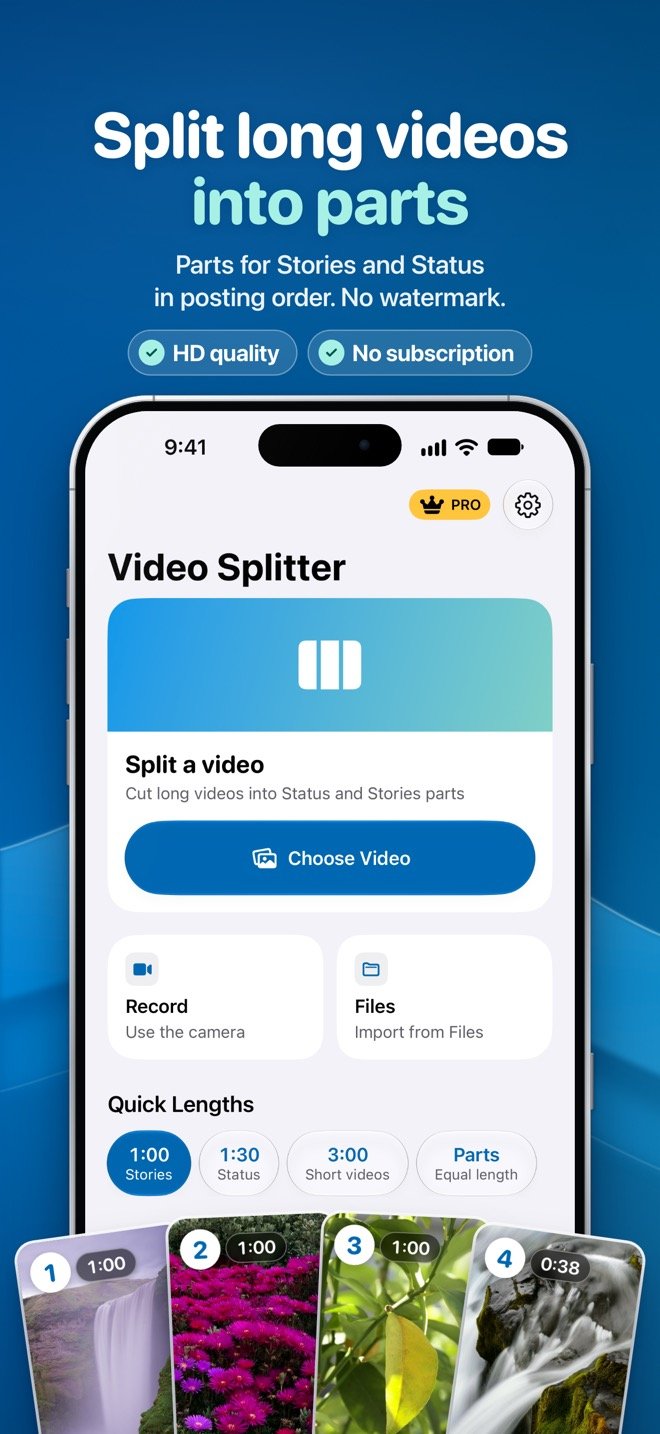
Open Video Splitter and tap Choose Video to pick it from Photos. You can also tap Files to import from the Files app, or Record to film a new one (up to 30 minutes). Videos are imported without compression. Shortcut: tap a quick length on the Home screen first, then choose the video.
-
Step 2: Tap Status or Stories
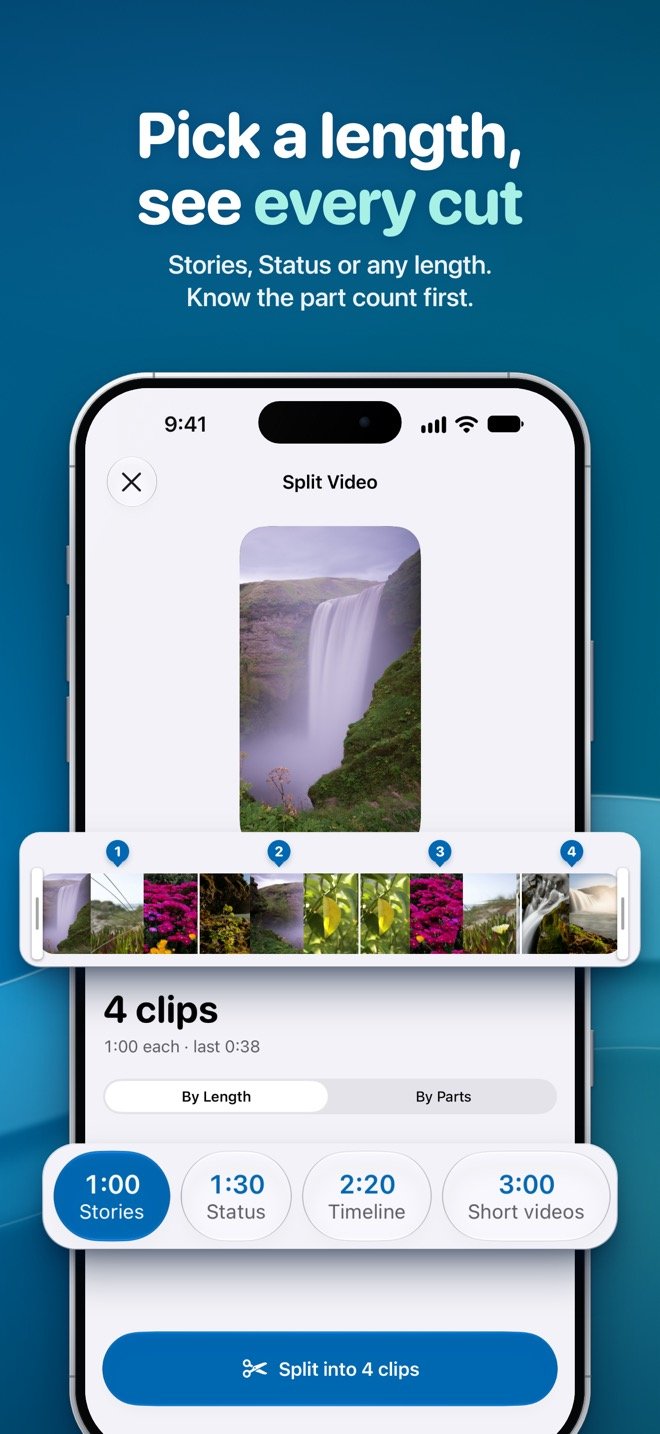
In the editor, under By Length, tap Status (1:30) or Stories (1:00). The preview shows right away how many parts you'll get, how long each one is and where every cut lands on the timeline. Tap Custom to set any other length with the slider or the +/- buttons, from 3 seconds up to the whole video.
-
Step 3: Trim, or split into equal parts (optional)
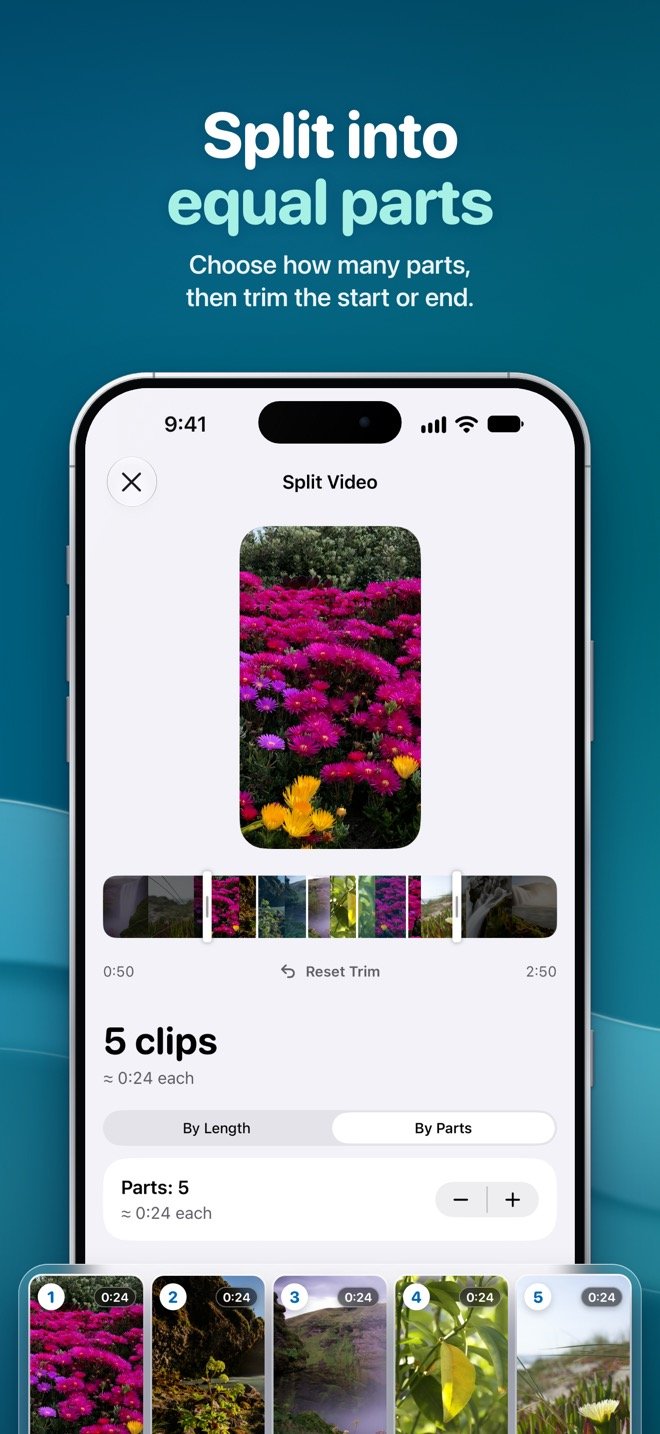
Drag the ends of the timeline to cut a slow start or ending. If you'd rather have a fixed number of pieces, switch to By Parts and choose how many: every part gets the same length.
-
Step 4: Tap Split
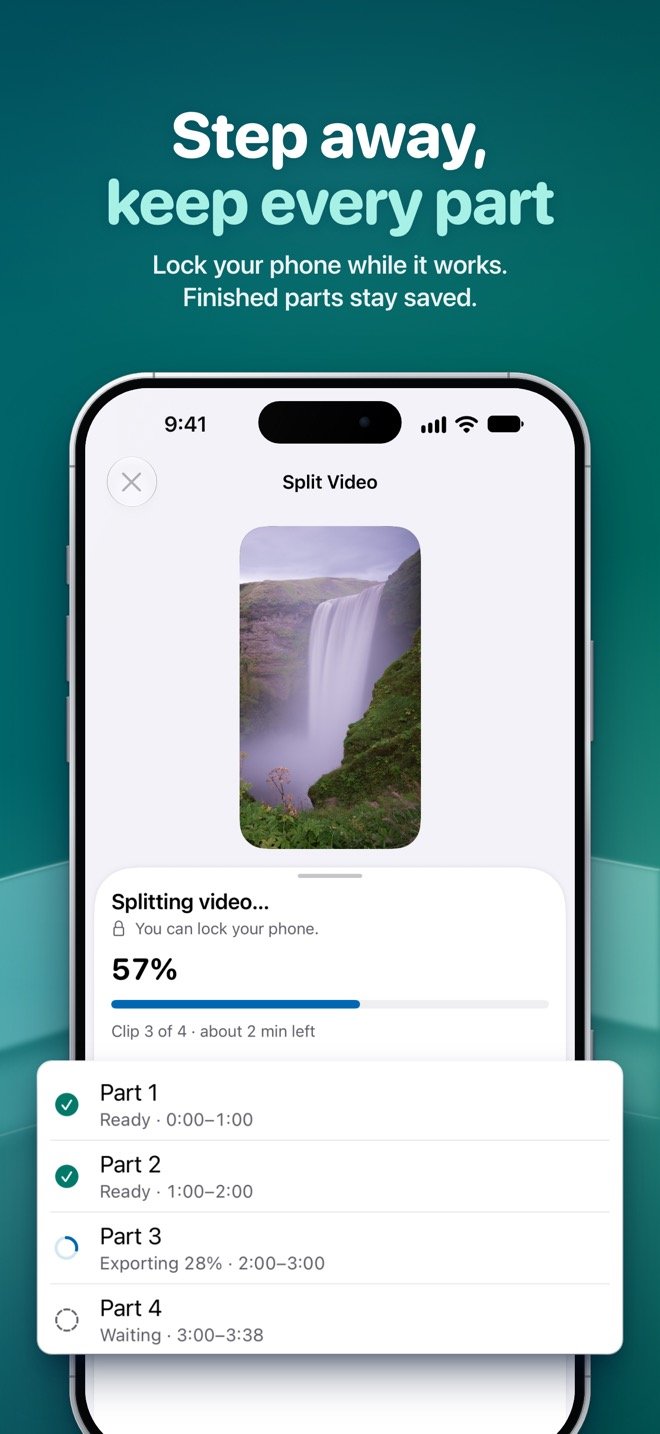
Tap the Split button, which shows how many parts you'll get. You'll see progress for every part. If one fails, tap Retry or Skip; the finished parts are kept, and if you cancel, you can choose to keep them. On iOS 26 or later, splitting can keep going while your screen is locked, when iOS allows it.
-
Step 5: Save the parts to Photos
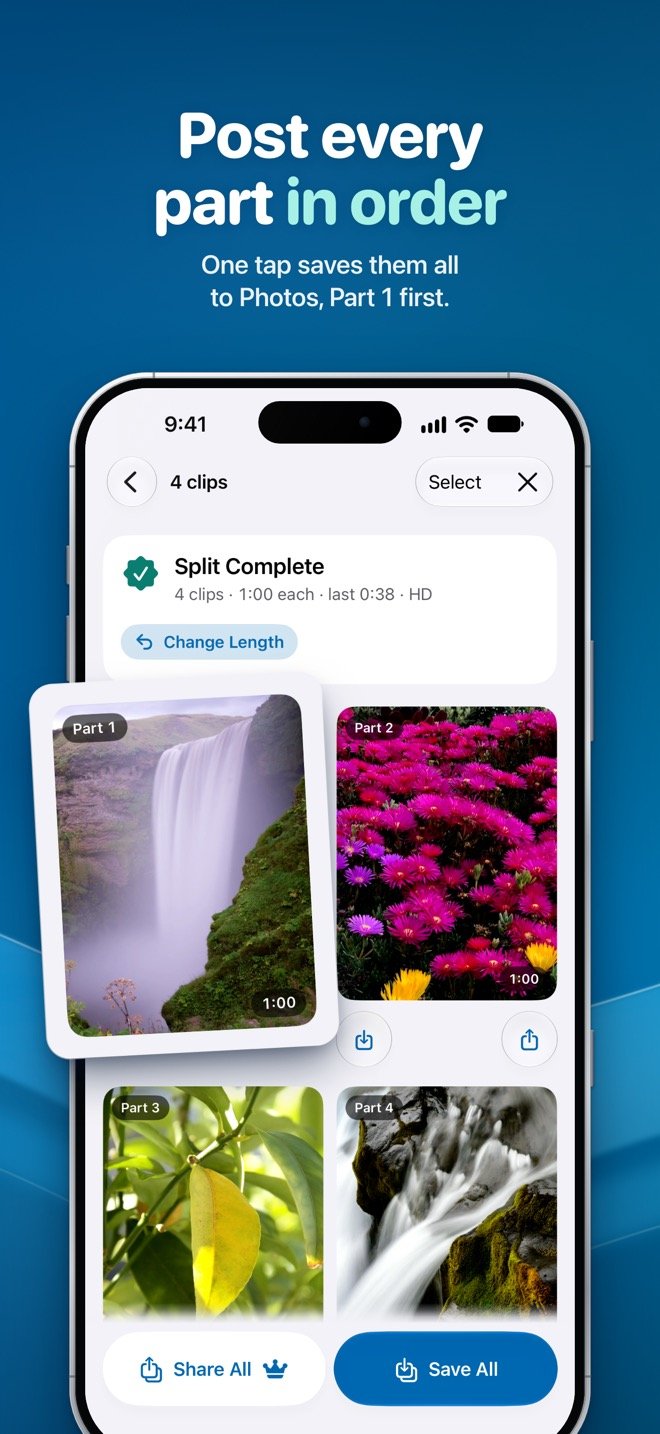
On the results screen, tap Save All to add every part to Photos in posting order, Part 1 first. Your first Save All is free; after that it's part of Pro, or you can save each part on its own for free.
-
Step 6: Post them to your status in order
Open WhatsApp, go to the Updates tab and add a status. Choose the parts from your recent videos starting with Part 1, check the order and send. Your contacts will see them back to back.


Tips for the best result
- Uneven leftovers: if the video is only a little over the limit, By Parts looks tidier. A 1:40 video becomes 1:30 + 0:10 by length, but two parts of 0:50 by parts.
- Keep the order clear: Save All adds the parts to Photos Part 1 first, with file names like Part 01 of N, Part 02 of N and so on. With Pro, you can also put a number like 1/5 on the video itself so viewers know where they are.
- Don't cut words in half: Pro's overlap repeats up to 3 seconds from the end of each part at the start of the next, and smart cuts move each cut to a nearby pause in speech.
- Quality: the free HD export goes up to 1080p at your video's own resolution. WhatsApp compresses status videos when you post them, so starting from a sharp HD part helps. For 4K or HDR originals, Pro's Original quality keeps the 4K and HDR, and lossless export cuts without re-encoding.
- Storage: splitting needs free space on your iPhone. If it runs out, splitting pauses: free up space and tap Resume, and finished parts are kept.
- Post again later: your recent splits stay in the app for 7 days, so you can save or share them again.
Frequently asked questions
What's the best length for WhatsApp Status parts?
Use Status (1:30) if your WhatsApp accepts 90-second statuses, since you'll get fewer parts. If WhatsApp asks you to trim a 1:30 part, your WhatsApp still has the 60-second limit: go back, tap Change Length and choose Stories (1:00). Your other settings are kept.
Can I post all the parts at once?
Usually, yes: when you add a status, WhatsApp lets you pick several videos from your library. Select them in order starting with Part 1, and check the order before you send.
Do I need to keep the app open while it splits?
On iOS 26 or later, splitting can keep going in the background while your screen is locked, when iOS allows it. On earlier versions it pauses when you leave and continues when you come back. Either way, the parts already finished are kept.
Is it really free, with no watermark?
Yes. Splitting, HD export and saving or sharing single parts are free, with no watermark and no daily limits; the free version shows ads. Your first Save All is free too.
Does this also work for Instagram Stories?
Yes. Use the Stories preset (1:00): Instagram currently plays up to 60 seconds per story video.
Ready to post the whole video?
Video Splitter is free on the App Store for iPhone (iOS 18 or later).